Over the last few years, a lot of websites have started adding AI. First came chat assistants, almost always for support (remember the classic “Hi! Ask me anything”?). As language models (LLMs) got better, many sites started turning features that used to be plain interface into conversations. Kiwi.com, the flight search site, is a good example: it has an “AI Mode” button next to its normal search. You switch it on and, instead of filling in origin, destination and dates, you describe the trip and chat with Kiwi’s assistant until it finds flights.
Looked at objectively, it’s a very good idea. You often land on these sites without really knowing what you want, and saying it in your own words is easier than filling in dates and fields you then have to keep changing to see other results.
The problem is that every time you want to do something like this, you have to repeat yourself. You have to give each site’s AI all the context from scratch, and your time goes on typing. Kiwi’s assistant doesn’t know I like flying first thing in the morning or late in the evening to make the most of the day, or whether I have a race, or when and where it is. In the end, these assistants are a second interface for what used to be buttons and clicks.
Meanwhile, the AI I use every day has got much, much better. It knows my projects, what I do each day and what I like, and I have it connected to my calendar and my code. Every time a site offers me its own AI, I think the same thing: why can’t I connect my assistant, which already knows what I want?
Agents that use the browser for you
The AI companies saw the same problem and came at it from the other side: if the web won’t let your AI in, your AI can use the web the way you would. Anthropic has released Computer Use and Claude in Chrome, and OpenAI has its own Chrome extension and its version of Computer Use. With them, the agent drives your computer and your browser from its desktop app or from the terminal.
Other companies and independent developers are trying things too, like Vercel’s agent-browser. It’s a command-line tool built for coding agents. It opens a page, reads the accessibility tree and gives each button or field a short reference, like @e1, that the agent can then click or fill in.
These tools work, and I like them. But use them for a while and you’ll soon see where they fall short. It reminds me of ordering food in a country where I can’t read the menu. The agent reads the page, guesses which box is the search field, clicks, waits and reads the page again to see if anything happened. Sometimes it clicks the cookie banner three times and gives up. All of that makes it slower and burns tokens, which is exactly what you pay for when you use an LLM.
The agent does what it can with an interface designed for people. The site knows what can be done on it, like searching for flights or logging a workout, but hides it behind pixels, and the agent has no choice but to guess.
That’s where WebMCP comes from.
What WebMCP is
WebMCP is a proposed web standard. With it, a page tells an AI agent which actions it offers and which function runs each one. The proposal comes from the W3C’s Web Machine Learning Community Group, where people from Google and Microsoft, among others, are working on it.
It’s still a draft, but you can already try it in Chrome 149 or later. Go to chrome://flags/#enable-webmcp-testing, set it to “Enabled” and restart the browser. To see which tools a page registers and call them by hand, install the Model Context Tool Inspector extension. If you want it to work for your users without them touching any flags, you need to sign up for Chrome’s origin trial and serve the token from your domain.
The name comes from MCP, the Model Context Protocol, which is what almost every AI app uses to connect to tools. An MCP server publishes a list of tools, each with a name, a description and an input schema, and the model decides when to call them. WebMCP keeps those ideas, but takes them out of the separate server and puts them in the page itself, in the tab you already have open.
How it works
WebMCP has two APIs. The imperative API is JavaScript: the page’s own code registers each tool on document.modelContext, and it ends up looking almost the same as an MCP tool.
document.modelContext.registerTool({
  name: "add-todo",
  description: "Add a new item to the user's active todo list",
  inputSchema: {
    type: "object",
    properties: {
      text: { type: "string", description: "The text of the todo item" },
    },
    required: ["text"],
  },
  async execute({ text }) {
    await addTodo(text);
    return {
      content: [{ type: "text", text: `Added "${text}" to the list.` }],
    };
  },
});
The execute function is part of the WebMCP API. It runs in the browser, with your session and your permissions. That way the site gives agents the same API, without having to add another one.
The declarative API is plain HTML, and it’s the one I like most. You add a few attributes to an ordinary form:
<form toolname="search-cars" tooldescription="Perform a car make/model search">
  <input name="make" toolparamdescription="The vehicle's make (e.g., BMW, Ford)" required>
  <input name="model" toolparamdescription="The vehicle's model (e.g., 330i, F-150)" required>
  <button type="submit">Search</button>
</form>
The browser turns a form into a tool. By default, the agent fills it in and you’re the one who presses “Submit”. With toolautosubmit, the agent can submit it too. In your code, the submit event tells you whether an agent sent it (agentInvoked), and with respondWith() you send it back a structured result instead of rendering a new page. At heart, a form already says what action it performs and what data it needs, and with these attributes the agent can read that too.
From there, the process is short. The agent, whether it’s the browser’s own or an extension, asks the page for its tools, reads the names and descriptions and calls one with its arguments. It doesn’t need screenshots or to guess which div hides a button.
Some agents already use it. In the ChatGPT desktop app, the built-in browser supports it under the name “site tools”. And agent-browser, the Vercel tool I mentioned earlier, has supported it since version 0.36. When it opens a page, it tells the agent which tools the page has, and the agent can call them with agent-browser webmcp invoke instead of clicking through buttons.
Why I think it’s the next step
Let’s go back to the AI modes and the browser agents. With an AI mode, you use each site’s AI, which knows nothing about you. With a browser agent, you use your AI, but it has to keep guessing the page’s structure. With WebMCP you get both: your own AI, and a site that explains to it what it can do. Kiwi is good at finding flights, but its assistant doesn’t know my race calendar, and mine has it connected.
It’s also more reliable: with screenshots, the agent has to guess at every step, whereas a tool call either matches the schema or returns a clear error.
And you’re the one in control. You can use your own model, through an agent that lives in your browser, like an extension in the style of Claude in Chrome, while you keep seeing the app’s usual interface. The spec presents WebMCP as a way for agents to work alongside a person in the browser, and leaves out agents that go off on their own, without a browser. The agent works on the page you’re looking at: you see the form fill in and you decide whether to press the button. I don’t want an agent booking things for me in a backend I can’t see. I want it to do the heavy lifting while I watch, and to have the last word myself.
WebMCP in Peak Health
To try it on something real, I added it to Peak Health, my training app.
Peak Health already had an MCP server. You paste the address into Claude or ChatGPT, sign in and you can ask your agent things like “look at my last block and plan the next one”. It reads your routines and workouts and prepares the plan with you without opening the app.
On the web, those tools didn’t work for me as they were. get_routine(routineId), for example, asks for the routine’s id because the agent using it can’t see anything. If you have the routine open on screen, the agent already has the same context as you, so the site’s tools already know the ID and what data is on screen.
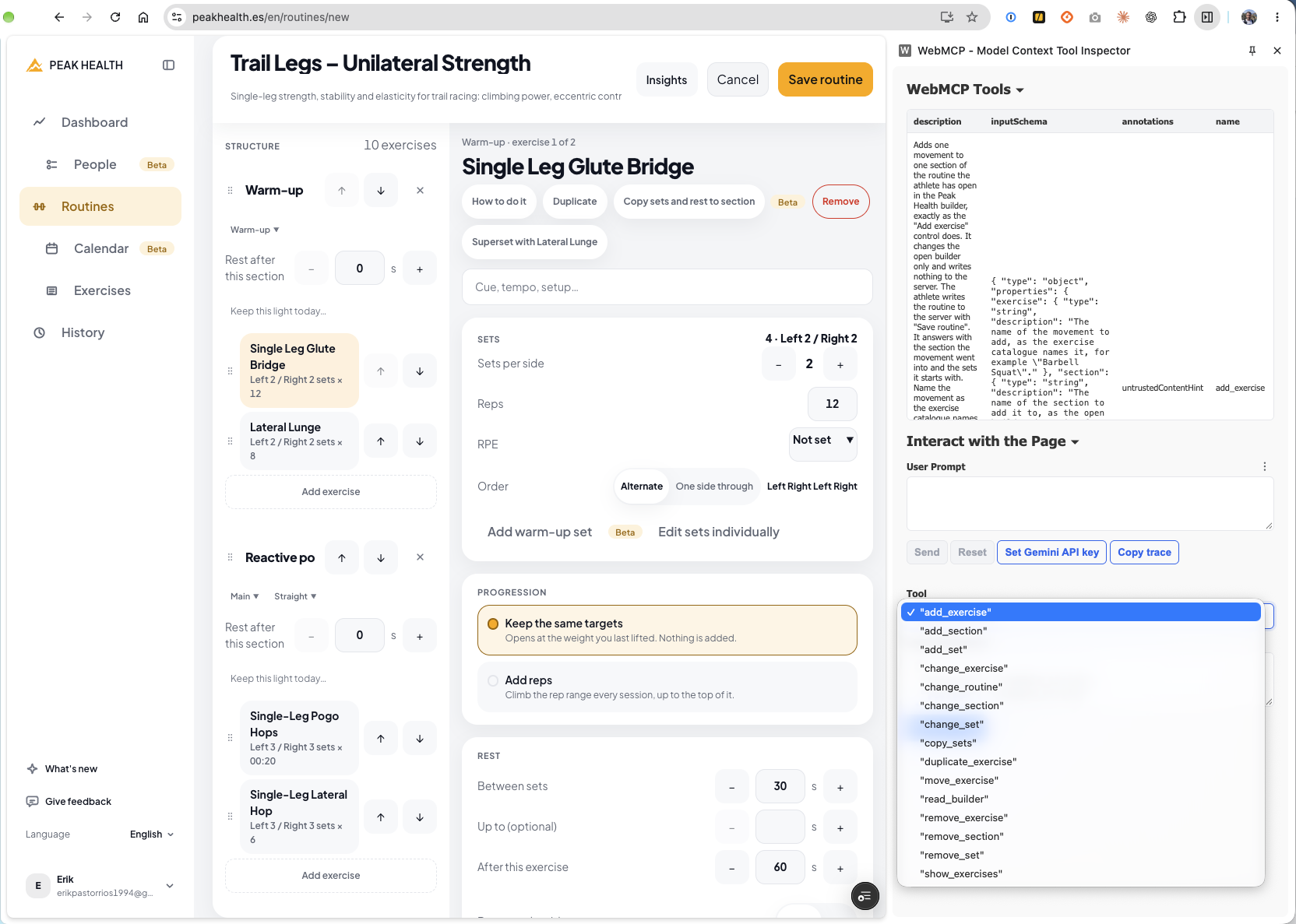
Each page registers only its own. On the dashboard, for example, read_next_session reads what your next session is. On the calendar, plan_rest_day marks a rest day. In the exercise catalogue, show_exercises types the search and sets the filters on the page itself, so I see the same list as the agent. And the routine builder has tools to add, move or remove exercises and sets without touching the mouse.
Removing the tools when you leave a page takes very little code. When you register each tool you pass it a signal, and when you abort that signal WebMCP removes it:
export function registerPageTools(context: ModelContext, tools: readonly PageTool[]) {
  const leaving = new AbortController();

  for (const tool of tools) {
    context.registerTool(tool, { signal: leaving.signal });
  }

  // When the page unmounts, all its tools are removed.
  return () => leaving.abort();
}
With the dashboard open, I ask the browser’s agent what I’m training today. It calls a tool and reads the answer the page already has. It doesn’t need screenshots or to scroll.
I was more careful with the tools that change data. Each one does exactly the same as its button: plan_rest_day uses the same code as “Rest this day”. If the server rejects it, the agent gets the same message I’d see next to the button, and the calendar doesn’t change. On top of that, the browser asks my permission before running anything, so nothing is touched until I accept.
In the builder, the tools don’t answer until the change shows on the page, so what the agent tells me matches what I have on screen. And none of them saves anything. They change the open builder as if I were doing the clicks, and the routine isn’t saved until I press “Save routine”.
What took me the most time was the tool descriptions, more than the code itself. The agent doesn’t see the screen, it only reads what I write, so if a description doesn’t make clear what that tool reads and what it needs, the agent gets it wrong.
If you ask it what you’re training today and the page is still loading, the tool answers something like “I don’t have your plan yet” instead of returning nothing. With an empty answer, the agent starts guessing what happened.
Then there’s the text you write yourself. A routine name or a note can contain anything, so when a tool returns it, it’s marked as user text. That way the agent knows it isn’t instructions.
Testing it is, for now, a manual job. Automating the tests isn’t simple yet, so you have to open Chrome with chrome://flags/#enable-webmcp-testing turned on and call each tool to see what it does.
What’s still to be solved
Being a draft, it still has a way to go. For now it only works in Chromium-based browsers. Firefox and Safari take part in the discussion, but haven’t committed to anything.
Also, today WebMCP mostly makes sense on a computer. The agents that call these tools live in browser extensions or desktop apps, and Chrome for Android doesn’t support extensions. To use it on the mobile web, it would have to be the phone’s own assistant (Gemini, on Android) that knew how to read the tools of the page you have open.
Security is the other big topic. The spec devotes a fairly long section to it, and with good reason. The agent believes what a tool’s description says, so a page can lie to it. And the text a tool returns can slip instructions to the agent, which is known as prompt injection.
Browser agents have already run into this problem. In August 2025, when Anthropic started testing Claude in Chrome, its own tests showed these attacks still worked 11.2% of the time with defences on, and Anthropic decided that was too much to open it up to everyone. WebMCP won’t fix that on its own, but when a site declares its tools, the agent has fewer things to misread than when it’s guessing.
Even so, I’m really looking forward to seeing how it develops. Until now, putting AI on a website meant building your own assistant or AI mode, or letting someone else’s agent struggle with your pages. For me, the next step is being able to use my own AI on the sites I already use, without each one having to build its own assistant, and WebMCP is heading exactly that way.